TV & Apple TV
The short version
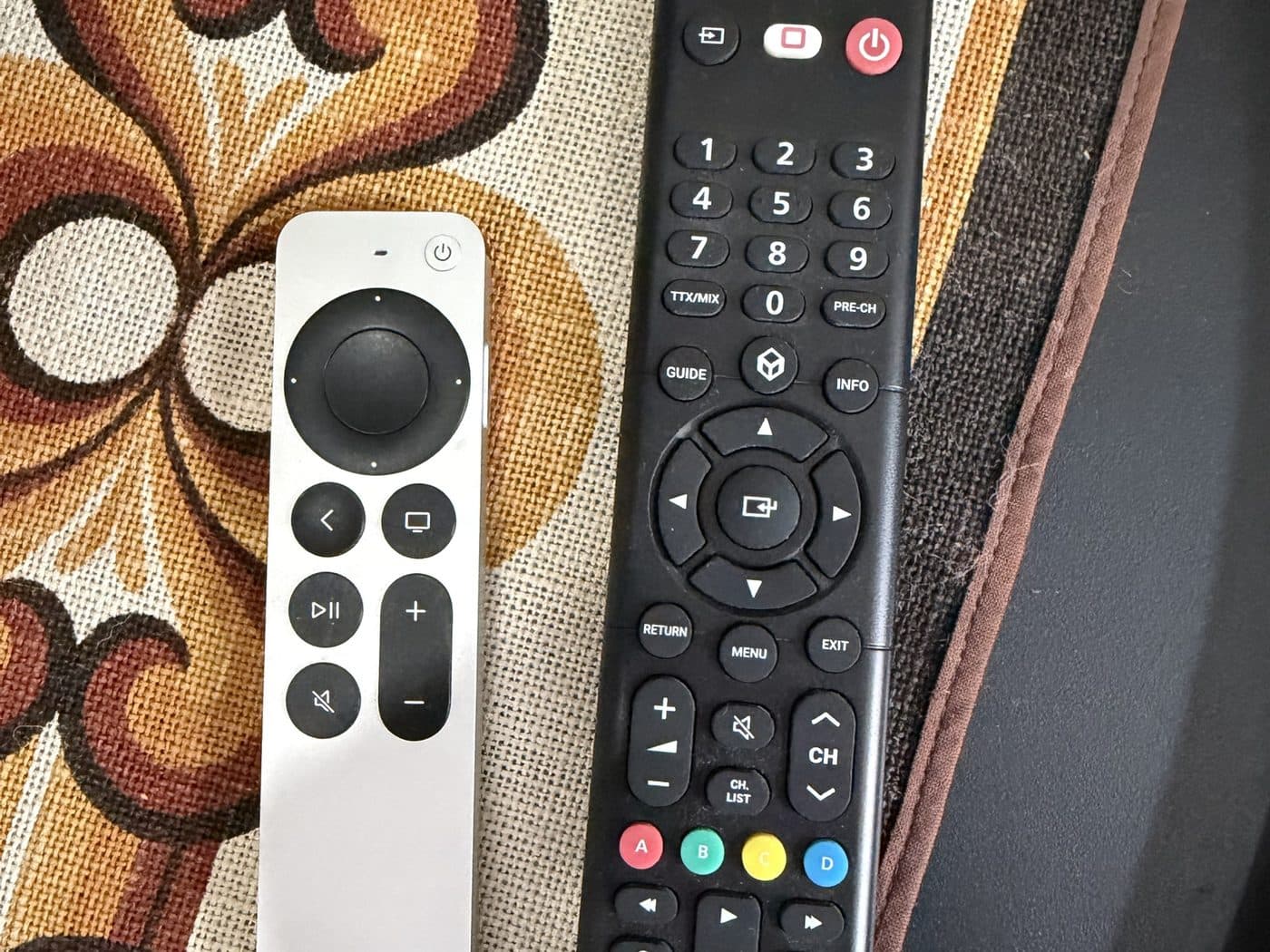
Turn on the TV and the Apple TV starts by itself. No picture? Press the input button on the black remote and choose HDMI 1. Apple TV+ is included, so you can start watching right away.
The Apple TV is already signed in, with Apple TV+ included. Please don’t sign in or out, or change accounts on the Apple TV.
Step by step
- 1
Turn on the TV
Press the red power button on the black remote (or the power button at the top of the silver remote). The Apple TV usually starts by itself.
 2
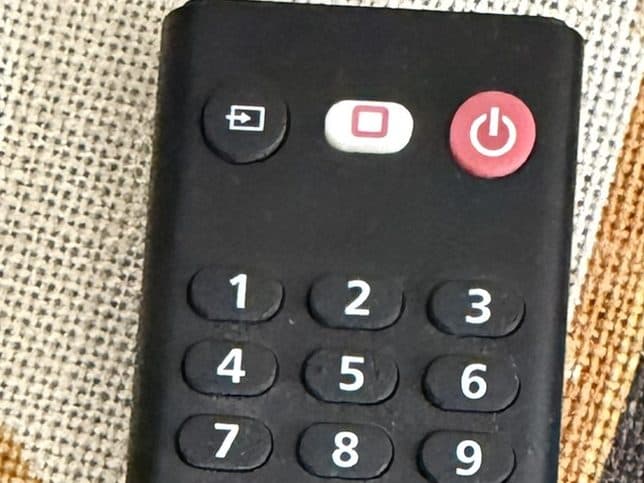
2No picture? Choose HDMI 1
Press the input button at the top left of the black remote (a box with an arrow) and choose HDMI 1.
 3
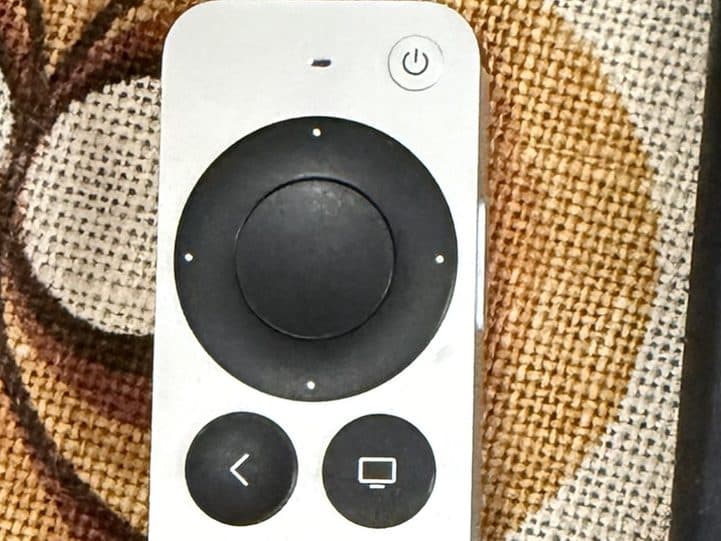
3Use the silver remote
Press the edges of the round pad to move, and the middle to select. ‹ goes back, the TV button takes you to the home screen, and + / − change the volume.
- 4
Open an app
Choose an app on the home screen and start watching. Everything is already set up, so there is no need to log in. Want to cast from your phone? Choose HDMI 2 for Chromecast.
- 5
Turn it off
Press the red power button on the black remote. The Apple TV goes to sleep by itself.
Something not working?
“No signal” on the screen
Press the input button at the top left of the black remote and choose HDMI 1. If it’s still black, press the TV button on the silver remote to wake the Apple TV.
Did this help?